 Pelican
 docs
Every Claude Code session on your computer, on your phone. Pelican runs next to Claude Code and gives it a web app made for a phone; this page covers setting it up and everything it does.
Install
On the computer where you use Claude Code, with Node 22.12 or newer and Claude Code signed in (run claude once and log in, or set an API key the way Claude Code reads it). Pelican runs on macOS and Linux.
npm install -g pelican-cc
pelican
Pelican prints a link, http://localhost:7860/?token=…. Open it: it signs this browser in, and your sessions are there already. pelican token prints it again, and pelican --open opens Pelican in this computer’s browser.
The install is about 150 MB, most of it the copy of Claude Code that the Agent SDK brings. The command is also called pelican-cc, for computers where Python’s Pelican already has pelican; if npm stops with EEXIST on bin/pelican, use npx pelican-cc, or install into another prefix.
To look first, open the live demo, which needs nothing installed, or run npx pelican-cc --demo for the same made-up sessions on this computer (the same 150 MB download, the first time). To run Pelican from a clone instead: git clone https://github.com/Ki-Seki/pelican && cd pelican && npm ci && npm run build && npm link.
Which Claude Code runs
Pelican runs the Claude Code its Agent SDK brings, at the version Pelican was tested with: the SDK is pinned, and the package ships the exact dependency tree its tests ran on. The start banner says which Claude Code runs and whether it is signed in; if it is not, pelican login signs it in with Claude Code’s own login. Settings › About shows the version too, and pelican --version prints the versions of Pelican, Claude Code, the Agent SDK and Node on one line, the line to put in a bug report.
Each Pelican release moves to the newest Agent SDK once the tests pass, so updating Pelican is how its Claude Code gets updated. When the claude in your terminal is newer, the start banner and Settings › About say so. To run that one instead, start Pelican with PELICAN_CLAUDE_PATH="$(command -v claude)".
Keep it running
Pelican only answers while it runs. This keeps it running in the background: it starts when you log in, and again if it stops.
pelican service installOn macOS it is a login item (a launchd agent), with its log in ~/Library/Logs/pelican.log. On Linux it is a systemd user service: journalctl --user -u pelican shows its log, and loginctl enable-linger keeps it running after you log out. pelican service status shows how it is doing, pelican service restart restarts it, and pelican service uninstall removes it. The service needs Pelican installed with npm install -g, not run through npx. Variables that look like secrets, such as ANTHROPIC_API_KEY, are not copied into it, and its log never holds the sign-in link: pelican token prints that.
While Claude works, in Pelican or in another app, Pelican keeps the computer from going to sleep on its own (PELICAN_KEEP_AWAKE=0 turns that off). A closed laptop lid still sleeps, unless the laptop is on power with a display attached. A computer that is asleep answers nothing, so to reach Pelican while Claude is idle, keep the computer awake: on a Mac on power, with the lid open, caffeinate -s does it while it runs; on Linux, systemd-inhibit --what=sleep sleep infinity; or use your system’s power settings.
Update and remove
npm install -g pelican-cc@latest updates Pelican, and with it the copy of Claude Code it runs. Then restart it, with pelican service restart if it runs as a service. A page that was already open picks up the new app when it reloads.
To remove Pelican, run pelican service uninstall if you installed the service, then npm uninstall -g pelican-cc. Its own files stay until you delete them: rm -rf ~/.config/pelican ~/.local/state/pelican removes the token, the password hash, uploads, notification keys and the folders you trusted. Sessions started without a project keep their folders in ~/scratch. Your Claude Code sessions belong to Claude Code and stay where they are.
Use it from your phone
Pelican listens on 127.0.0.1, so only your computer can reach it until you choose a way in, and every browser signs in. Whoever can use Pelican can run Claude Code as you, so pick a way in that keeps everyone else out.
Tailscale (recommended)
Your phone and computer join the same private network, and tailscale serve puts Pelican behind HTTPS, which notifications need. With Tailscale on both:
tailscale serve --bg 7860
pelican phone
pelican phone finds the address tailscale serve gave Pelican, checks that it reaches this very Pelican, and prints a QR code. Scan it with the phone’s camera: Pelican opens there, signed in. The code works once, for two minutes; press Enter for a new one. On a Mac with only the Tailscale app, tailscale is not a command in your terminal; run pelican phone, and it prints the command with the app’s own path.
Once Pelican knows the phone’s address, its start banner shows the QR code, and so does Settings › On your phone on the computer. To give the address yourself, run pelican phone https://laptop.example.ts.net, or start Pelican with PELICAN_PUBLIC_URL set to it. Or set a password with pelican password and type it on the phone.
An SSH tunnel
From a laptop, or a phone app that forwards ports (Termius, Blink): ssh -N -L 7860:127.0.0.1:7860 you@computer, then open the link Pelican printed.
Your own reverse proxy
Put Pelican behind Caddy or nginx with HTTPS, and tell it the public address:
PELICAN_PUBLIC_URL=https://pelican.example.com pelicanPelican then answers to that name and takes changes from it, and pelican phone makes its QR codes for it. If the proxy already authenticates, add --no-auth to turn Pelican’s own sign-in off. With the proxy on the same computer, PELICAN_TRUSTED_PROXY=1 lets Pelican count failed sign-ins per client. Pelican works under any path prefix, so https://example.com/pelican/ is fine.
On the home network
pelican --host 0.0.0.0 prints a QR code for your phone and works across your Wi-Fi, but over plain HTTP: the sign-in travels in the clear and notifications are off. Prefer Tailscale.
Add it to your Home Screen
In Safari, Share → Add to Home Screen; in Chrome, Install app. Pelican then opens full screen, and on an iPhone notifications only work this way.
Using Pelican
Sessions
The list shows every Claude Code session on the computer, whichever app started it: the terminal, Claude Desktop, VS Code or Pelican. A dot marks what changed since you last looked, and a bar marks the session that is open. A session’s title is the name you gave it or the one Claude Code wrote; without one, the text of a prompt, cut to one line. The browser tab shows the open session and how many sessions need you.
Search covers titles, folders and the latest reply. Filter by project; sessions started without a project share one Scratch filter, and runs in the system’s temp folder (usually started by another session) stay out of All unless the list’s options say otherwise. Group by time or by project, with detailed or compact rows, from the button next to the search. Long lists load as you scroll, and a row opens in a new tab with ⌘-click (Ctrl-click).
A session whose turn is over but whose background tasks still run shows how many, as 2 tasks with a steady dot, among the active ones; it says Working again when Claude takes up what they found. A session Claude Code stopped before it could reply says why instead of a reply, such as Stopped: not signed in.
To archive a session, swipe its row left on a phone, or use the archive button that shows when you point at it on a computer; Undo shows for five seconds. Archived sessions wait under Archived, in the list’s options, to be unarchived the same way. Archiving takes a session off the list and changes nothing else; it is Pelican’s own, apart from Claude Desktop’s.
+ opens an empty session in your latest project, or the project the list shows, or a new folder under Scratch, ready to type. Tap the folder under What should Claude do? to start somewhere else.
Sessions another app is running
Pelican sees every session Claude Code runs on the computer. One that another app is working on says Working in Claude Desktop (or the terminal, or VS Code), in the list and in its header, and you can follow it as it works. One that waits for you there, at a permission prompt or a question, says Needs you in the terminal, and if the wait lasts about 20 seconds your phone gets one notification; answer at the keyboard first and nothing is sent. Pelican cannot answer that prompt for you: answer it in that app, or with Remote Control.
Each of these is explained once, in a short note you can dismiss. After that, the message box says what sending would do, for example Working in the terminal · a message starts a second Claude. A session another app has open but idle says so in the session menu. Continue a session in one place at a time: before it sends, Pelican catches up with what was said in the other app, but the other app does not see what you send here until the session is reopened there. Side chats, Claude Desktop’s and Pelican’s, are kept out of the list; Side chats in the list’s options shows them.
Reading a session
Three views, as in Claude Desktop: Normal folds the steps and shows the replies whole, Thinking adds Claude’s thinking, and Verbose opens every step. Each session keeps the one picked in its menu, where Thinking shows once Claude has thought there; the others open in the one picked in Settings, and Ctrl O steps through them. Tool calls show what they did the way you would check it: diffs for edits, the command and its output, images. Plans, questions and the task list get their own cards, with what you answered under them; an Agent call opens the steps its subagent took, and a workflow is a card with its phases and agents (below).
A file a step names opens at its line, where a read began or an edit changed it, and so does a path:line in a reply (also :7-8 and #L3-L9), when the file is in the session’s folder. Under a turn that edited files, 3 files changed opens what that turn changed.
A session opens at its newest message, and while Claude works the view follows what it writes. Scroll up and it stays where you are, with a round arrow to jump back to the end. The whole history is there, up to the first prompt; a divider marks each compaction, and opens to the summary Claude carried on from. Long prompts fold after about twelve lines, and files you sent show as chips that open them. Code shows with its language and a Copy button, highlighted in the common languages.
For a session running in Pelican, each turn shows its time and tokens, and a ring next to Send shows how full the context is. The cost under a reply is that turn’s; it is left out for Claude plans, whose usage limits Settings shows instead, and for the first turn after a session is resumed. When a request fails, one line says why in plain words: the API is overloaded, the conversation is too long, Claude Code is not signed in (run claude and /login), or the usage limit was reached, and when it resets. At the end of the conversation it offers the next step: Retry sends the prompt again with its files, and Compact sends /compact when the conversation is too long.
Talking to Claude
- The first chip picks the model, then the effort level (up to max), Fast mode and Ultracode, as Claude Code’s
/modeldoes; the second picks the permission mode. Both belong to the session, which keeps them; a change reaches a Claude already at work from its next step. - Type
/for the session’s commands and skills,@for files, folders and subagents. Commands that only work in a terminal, such as/exitor/theme, are left out./clear,/resetand/newstart a new session in the same folder with the same settings, Bypass aside. - Attach photos and files, paste them, or drop them anywhere on the conversation. Pictures the API cannot take as they are, such as HEIC or SVG, go to Claude as files to read.
- Select text in a reply, a step’s output or a file and tap Quote. The quote waits above the message box, with any others, and goes above your words as a
>quote; lines of a file carry where they are, assrc/app.ts:7-8. A/or!command leaves the quotes for the next message. - Tap the microphone, where Send is when the box is empty, to dictate with your browser’s dictation.
- Enter sends on a computer and starts a new line on a phone; Settings changes that. ⌘ Enter (Ctrl Enter) always sends, and the Enter that picks a Chinese, Japanese or Korean word never does.
- What you type is kept for each session, attached files, quotes and line comments included, until you send it: leaving the chat, opening another session or reloading the page keeps it. Signing out forgets it. A message that does not go, the computer out of reach, comes back to the box with its files, above anything you typed since; a
!or/command comes back only into an empty box, and otherwise waits above it with Put back, as does a message that comes back while you type a command, its files waiting with it. A command never takes words or files that are not its own: where the two cannot share the box, Put back swaps them, and what was in the box waits in its place, Set aside.
Permission modes
The mode decides what Claude may do without asking. The names are Claude Code’s:
| Manual | Asks before edits and commands. |
| Accept edits | Edits files, and runs mkdir, mv, rm and the like, in the session’s folder without asking. |
| Plan | Reads and plans; changes nothing until you approve the plan. |
| Auto | Runs what it needs, with Claude Code’s safety checks in the background, on the models that have it. |
| Bypass permissions | Runs everything without asking. Only for a machine that holds nothing you would miss. |
New sessions start in the mode picked in this browser under Settings › New sessions start with: Manual, Accept edits, Plan or Auto. Until you pick one there, they start in the permissions.defaultMode of your Claude Code settings (a folder’s own settings count once Claude has worked there), and otherwise in Auto, or in Manual where the model has no Auto. Bypass is never a default: pick it in the session itself. A branch, an edited earlier prompt or a /clear of a session in Bypass starts in that default too, not in Bypass.
A session in Claude Code’s Don’t ask mode keeps it and shows it; Pelican does not offer it. When the mode changes without being picked in Pelican, for example when Claude leaves Plan, a short line in the conversation says so.
While Claude works
Approvals appear above the message box with the diff or the command, in Claude Code’s own words, saying which subagent or MCP server asks. Several come one at a time, marked 1 of 3. Allow lets this one through. The button next to it says what it saves and where, as Claude Code would: Always allow npm test * in this project (kept in the repository’s .claude/settings.local.json), Allow all edits this session (the session switches to Accept edits) or Allow access to ~/data for this session; it is left out when Claude Code would allow more than was asked. Deny works like Claude Code’s No: without a note, Claude stops and waits for you; with one, Claude carries on with what you said. Characters that hide text or turn it around show as ⟨U+202E⟩, with a warning.
A plan can be approved into Auto (where the model has it), Accept edits or Manual, or sent back with Keep planning. Questions show their short header and a preview of the option you pick. An MCP server that asks for something gets a card to answer: a short form, or a page to open to sign in.
A message you send while Claude works steers it: Claude reads it at its next step, as when you type in the terminal. Tap Steer next to Send to queue it instead. Queued messages wait above the message box, where a tap edits one and × removes it, and go to Claude together when the turn ends, also after Stop. Settings picks which of the two comes first. Stop, or Esc, ends the turn but leaves background agents and commands running, as Esc does in the terminal.
Notifications, turned on in Settings, say what Claude wants (the command, the file, the question) and, when a turn ends, the first line of the reply; tapping one opens the session. Where the device shows buttons on notifications (Chrome on a computer or Android, not iPhone), a command a notification shows whole has Allow, for this once, and Deny, which stops Claude as Deny does here: printable ASCII with one space between words, on one line, short enough for two lines of the narrowest notification, about 50 characters and fewer when they are wide. On Android, whose pop-up shows one line of a notification beside the buttons, the command must fit that one line, about 20 characters. A notification shows the command itself, never Claude’s description of it, and offers no buttons for what it might not show in full: a longer command, one with any other character, an edit or another tool opens the session, as questions and plans do. They come for the work you send from Pelican, and once when another app’s session has waited for you about 20 seconds. A new token or password stops them on every device, and signing out stops them on that one.
! commands
Start a message with ! to run a command in the session’s folder, like Claude Code’s bash mode: !git log --oneline -5. Its output shows as it comes, with how long it has run and Stop, which ends everything it started; once it ends, the end of the output stays in view, and Show all shows the rest. When it ends, Claude reads the output and answers, as in the terminal, unless your Claude Code settings set respondToBashCommands to false; that answer is a turn, like a prompt. Claude gets the output as Claude Code’s bash mode gives it: stdout and stderr together, up to 30,000 bytes or what bashOutputMaxChars sets; where that is unset, BASH_MAX_OUTPUT_LENGTH sets how much Claude Code reads back (1 to 150,000 bytes), of which Claude gets at most 30,000 characters inline. Past that, for a command that went well, Claude gets its start and where it was saved, up to 64 MB, in the session’s tool-results folder, which Show all reads; a command that failed is cut there, and says Failed once it is in the conversation. Exit code 1 from grep, diff, test or find is an answer, as in Claude Code, when that command is the line’s last statement, not one in a subshell or a { } group. A command you stop gets no answer. Commands run in your login shell, without a terminal, for up to 30 minutes; one still running when Pelican stops gets up to 15 seconds to tidy up (Ctrl C again ends it at once). One that ends with &, such as !npm run dev &, returns at once and keeps running in the background. Pelican writes commands into the transcript as Claude Code does, so the terminal and Claude Desktop show them, and Pelican shows the ones run there.
Changes and files
The folder button in a session’s header opens Changes and files. Changes shows, as Claude Code’s /diff does, what is Uncommitted (the files this session changed first), everything Since main (since the branch split from the default branch), or what one turn changed: T1, T2 and on, cut, numbered and counted as /diff does them (what Claude does in answer to a ! command is that command’s turn), read from Claude Code’s own record, so also in a folder git does not track. After a compaction /diff numbers from 1 again, and it reads only the last 4,096 messages, so in a longer stretch its T1 is a later turn; Pelican, which shows every turn, counts on from the first. A turn ends with Rewind code where Claude Code kept the files as they were before it. Open a file for its diff, with line numbers. Tap a line to comment on it: as in Claude Desktop, comments belong to the session and go with your next message there, before your words, or on their own with ⌘ Enter (Ctrl Enter).
Files browses the folder and searches it, by name as you type or in the text. Open a file to read it with line numbers and highlighting, Markdown and HTML previewed; select lines to Quote them, Mention the file in your message, or Download it. Panes only show: on the branch line, Commit, Push and Create PR put a request to Claude in the message box, and Claude does it with your rules, hooks and attribution, as Claude Desktop’s Create PR does. Pelican runs no git that changes anything.
On a phone it is a view of its own, and the back gesture steps back through it; a bar at the bottom says when Claude needs you. On screens 1024 pixels wide or more it sits beside the conversation and stays there from session to session (below 1280 the session list folds away while it is open), and ⌘⇧D (Ctrl Shift D) shows or hides it, as in Claude Desktop; ⌘\ (Ctrl \) closes it when you are in it, as it closes the side chat. Git runs only in folders you trust; turns and files show in any folder.
Side chats
Ask something on the side without disturbing the session, as with Claude Desktop’s side chats: type /btw, with or without the question, press ⌘; (Ctrl ;), or pick Side chat in the session menu. Claude answers from a copy of the session so far, and can only read: Read, Grep and Glob, no MCP servers, never Bypass, nothing to approve. Nothing goes back to the session, which can keep working meanwhile. On screens 1024 pixels wide or more the side chat sits beside the conversation, taking turns with Changes and files (below 1280 the session list folds away while it is open), and a file or a turn’s changes opened from the conversation or an answer takes its place; on a phone it is a sheet. Reopened in the same tab it continues; New starts a fresh one from the session as it is now.
Side chats are Claude Code sessions titled “Side chat”, kept out of the session list unless its options show them, and continue in the terminal and Claude Desktop like any session. Opened from the list, one stays read-only here too: its box takes questions only, and nothing in it changes files. The first question reads the whole conversation without the session’s prompt cache, so it costs about what a long prompt does; later ones use the side chat’s own cache.
Visuals and pages
What Claude makes to be looked at is shown that way. Charts and diagrams it draws as Claude Desktop visuals appear in the conversation, a page or SVG it writes opens rendered (with its code a tap away, and full screen), html and svg blocks in a reply can be previewed, and files it sends you show as pictures, pages or documents. They show as still pictures, in a sandboxed frame that cannot reach Pelican, your cookies or its API; their scripts run only when you tap Run. Visuals show only for tool calls that ran.
Rewind and branches
Tap one of your prompts for Copy, Edit and Rewind; on a computer they show when you point at it. Rewind puts the files Claude changed since that prompt back the way they were, after showing which ones; the conversation stays. Edit opens the prompt in place, files and all. Send replaces the last prompt in this session, as rewinding does in Claude Code; for an earlier one it makes a branch from just before it and sends the new text there, and the original stays. The session menu also has Branch (a full copy), Rename, Export as Markdown, Archive, Delete, and the command that continues the session in a terminal.
MCP servers, usage and background tasks
The session menu lists the session’s MCP servers and whether they connected; while Claude runs in Pelican, each can be turned off or reconnected. A server that needs you to sign in before it connects says where, once: claude mcp login and its name in a terminal on the computer, or claude.ai’s connectors page for claude.ai’s. Settings shows your account and the plan’s usage limits as Claude Code reports them, and a session warns, in grey, as a limit gets close.
Usage and activity, in Settings under your account, shows your Claude Code usage on this computer, from every app: tokens of each kind over 7 days, 30 days or all time, tokens per day, sessions, active days and streaks, and where they went by project, model, app and session, with a few highlights, such as how much came from the cache, when a usage limit was reached and how long Claude waited for you in Pelican. On a Claude plan its limits are at the top; with an API key or a cloud provider it shows the cost Claude Code estimates, at API prices. Each reply counts once, also when Claude Code wrote it in several rows or copied it into a side chat or a branch; /stats counts each content block of a reply, so its totals are higher. Subagents count toward their session, and days are UTC days, as in /stats. Transcripts are read once, then only what they gained. The session menu shows what that session used.
Commands and agents Claude runs in the background appear above the message box, each saying what it is doing, with a Stop; a command’s Output shows what it printed. Check-ins Claude schedules, such as /loop and reminders, are listed with when they are next due, and Cancel asks Claude to cancel one. Claude keeps running for them and for background work, past the 30 minutes after which an idle Claude otherwise closes. In apps built on the Agent SDK, Pelican among them, Claude Code stops a background command after 30 minutes, or two hours if Claude gives it a longer timeout; its tools reference says how to raise that.
A workflow Claude runs, with Claude Code’s Workflow tool, shows as a card in the conversation, as Claude Code shows one: its name and what it does, Running and for how long, or Completed in 6m 1s · 4 agents · 412.3k tokens, Failed or Stopped. Open it for its phases in order, one a line, such as Review · 3 of 5 done; a phase opens into its agents, with their model, tokens and time, and an agent into what it was asked (one still waiting for a slot, the start of it Claude Code gives), what it returned and the last steps it took, the rest a tap away. On a computer a phase opens as it starts work and stays open, and Verbose opens them all. Asked to run one, Pelican shows its phases, the args its script runs with and the file it runs, as Claude Code does. In a session Pelican runs, the card follows Claude Code’s own reports as they come, and Stop ends the workflow; for a session another app runs, Pelican reads the run’s folder every few seconds while the card is on screen and the workflow runs, which it does while its agents write or a Claude Code has the session open; once Claude Code has said it did not finish, only while a Claude Code has the session open and its agents went on. The script and the result are a tap away, and the line where Claude heard that the workflow ended leads back to its card.
Hook feedback, such as why a prompt was blocked, warnings and the output of commands like /cost show in the conversation as notes.
Folders you trust
A folder can bring programs of its own: hooks, helper commands and environment variables in its Claude Code settings, MCP servers in its .mcp.json, filters in its git config. Claude Code asks before it runs them in a terminal, but not in a session started through its SDK, so Pelican asks. The first time Claude Code would start in a folder nobody has trusted, and the folder brings any of these, Pelican lists them and offers Trust and start or Use my settings only. With your settings only, Claude Code leaves out the folder’s settings, hooks, MCP servers and CLAUDE.md, and git runs none of its programs. Folders trusted in Claude Code, folders Claude has already worked in and scratch folders Pelican made are not asked about.
Settings and keys
Settings holds what applies everywhere: the appearance, the view sessions open in, what new sessions start with (model and mode), whether a message sent while Claude works steers or queues, the Enter key, suggestions of what to ask next, notifications, your account and its usage, the QR code for your phone, and the versions that run. What belongs to one session, such as its model, mode or view, is set in that session.
On a computer, Esc stops Claude, ⌘K (Ctrl K) searches sessions, ⌘/ (Ctrl /) lists the keys, ⌘⇧D (Ctrl Shift D) shows or hides Changes and files, ⌘; (Ctrl ;) opens a side chat, ⌘\ (Ctrl \) closes the pane you are in and Ctrl O steps through the views, as in Claude Desktop. With a screen reader, each turn has a heading, and Pelican says when Claude asks for approval, asks a question, presents a plan or replies, and when the connection drops or comes back. With Reduce motion on, status dots hold still and jumps are instant.
Claude Code coverage
What Pelican does of Claude Code’s features, next to the terminal (CLI) and Claude Desktop as Claude Code’s docs describe them on 5 November 2026. Pelican runs Claude Code itself, so what Claude Code does on its own, such as your settings, CLAUDE.md, hooks, skills, subagents, models and any login, works as it does in the terminal; this table is about what you see and use. A dash means that app’s docs describe no such thing. The table is updated with each release.
| Feature | CLI | Desktop | Pelican |
|---|---|---|---|
| Sessions | |||
| Pick up an earlier sessionPelican lists every app’s sessions, live, with their whole history | Yes | Yes | Yes |
| Rename a session | Yes | Yes | Yes |
| Branch a conversationBranch, or edit an earlier prompt | Yes | Yes | Yes |
| RewindFiles go back with Rewind, the conversation by editing a prompt; no Summarize from here | Yes | – | Partly |
Compact/compact; each compaction shows as a divider with its summary | Yes | Yes | Yes |
| Export a conversationAs Markdown | Yes | – | Yes |
| ArchivePelican’s archive is its own, apart from Desktop’s | – | Yes | Yes |
| A worktree for each sessionA session started in a worktree elsewhere shows and continues there | Yes | Yes | No |
| Background sessions (agent view)Pelican’s own sessions run without a terminal anyway | Yes | – | No |
Side questions (/btw)A read-only side chat, as Desktop’s | Yes | Yes | Yes |
| Cloud sessionsPelican runs Claude Code on your computer only | Yes | Yes | No |
| Remote ControlPelican is another way in; it cannot answer a prompt waiting in another app | Yes | Yes | No |
| Working with Claude | |||
| Permission modesManual, Accept edits, Plan, Auto and Bypass; a session in Don’t ask keeps it | Yes | Yes | Yes |
A default mode for new sessionsSettings first, then permissions.defaultMode, then Auto | Yes | Yes | Yes |
| Approvals, plans and questionsWith the diff; Always allow says where the rule is kept | Yes | Yes | Yes |
| Steer or queue while Claude works | Yes | Yes | Yes |
Shell commands (!)Output as it comes, with Stop, up to 30 minutes; Claude answers as in the CLI | Yes | Yes | Yes |
/ commands and skillsThe session’s own list; commands that need a terminal are left out | Yes | Yes | Yes |
@ files, folders and subagents | Yes | Yes | Yes |
| Images and files in a promptThe CLI takes pasted images; Pelican takes photos and any file | Partly | Yes | Yes |
| Model, effort and fast mode | Yes | Yes | Yes |
| Prompt suggestionsSettings › Suggest what to ask next | Yes | Yes | Yes |
| Voice dictationYour browser’s dictation, with any login | Yes | – | Yes |
| Transcript viewsNormal, Thinking and Verbose, as in Desktop | Yes | Yes | Yes |
| Quote part of a replyAlso a step’s output, or lines of a file | – | Yes | Yes |
| Task list | Yes | Yes | Yes |
| Subagents and background tasksEach with a Stop, and a command’s output | Yes | Yes | Yes |
WorkflowsPhases, agents and each agent’s steps, live, with Stop; pausing one or restarting an agent is the CLI’s /workflows | Yes | Yes | Partly |
/loop and remindersListed with when they are next due; Cancel asks Claude | Yes | – | Partly |
Context and usageA ring for the context, plan limits, a usage page across every app; no /context breakdown | Yes | Yes | Partly |
| NotificationsFor Pelican’s work, with Allow and Deny for a command shown whole where the device has buttons, and when another app’s session waits for you | Yes | Yes | Yes |
| Changes and files | |||
| Review the changesUncommitted, since the branch split, or one turn; comments on lines go with your next message | Yes | Yes | Yes |
| Commit, push and create a PRA request to Claude, as Desktop’s Create PR is | Yes | Yes | Yes |
| Edit a file yourselfPelican reads, searches, quotes and mentions files | – | Yes | No |
A terminal beside the conversation! commands instead | – | Yes | No |
| Preview a running appPages and visuals Claude writes do show, in a sandbox | – | Yes | No |
| Pull request status | Yes | Yes | No |
| Setup | |||
Settings, CLAUDE.md, hooks, skills, subagentsIn a folder kept to your settings, only yours | Yes | Yes | Yes |
MCP serversStatus, turn off, reconnect, forms; sign in to one with /mcp in a terminal | Yes | Yes | Yes |
PluginsInstall them with /plugin in a terminal | Yes | Yes | Untested |
| Chrome and computer use | Yes | Yes | Untested |
| Bedrock, Google Cloud, Foundry, gatewaysPelican uses whatever Claude Code is set up with | Yes | Partly | Yes |
| Dispatch from the Claude app | – | Yes | No |
| Sessions on another machine over SSHRun Pelican on that machine instead | – | Yes | No |
Configuration
| Option | Environment | Default | What it does |
|---|---|---|---|
-p, --port | PELICAN_PORT | 7860 | Port to listen on |
-H, --host | PELICAN_HOST | 127.0.0.1 | Address to listen on |
--name | PELICAN_MACHINE | host name | Name shown for this computer |
--no-auth | PELICAN_AUTH=none | Ask no one to sign in, when a proxy in front authenticates | |
--open | Open Pelican in this computer’s browser | ||
--demo | Made-up sessions; nothing runs | ||
-v, --version | The versions of Pelican, Claude Code, the Agent SDK and Node | ||
PELICAN_PUBLIC_URL | The address phones use to reach Pelican, such as https://laptop.example.ts.net; Pelican answers to it and takes changes from it | ||
PELICAN_ALLOWED_ORIGINS | Comma-separated origins allowed to make changes, besides Pelican’s own and the public address | ||
PELICAN_ALLOWED_HOSTS | Host names to answer to, besides this computer’s names and addresses, loopback and *.ts.net | ||
PELICAN_TRUSTED_PROXY | 1: believe X-Forwarded-For from a proxy on this computer, so sign-in limits count each client | ||
PELICAN_FRAME_ANCESTORS | Origins allowed to show Pelican in a frame, besides its own | ||
PELICAN_SESSION_URL | Where a tapped notification opens a session ({id} is replaced), for a page that embeds Pelican | ||
PELICAN_KEEP_AWAKE | 0: let the computer sleep while Claude works | ||
PELICAN_IDLE_CLOSE_MS | 30 min | How long an idle Claude process stays open; the next message resumes the session | |
PELICAN_CLAUDE_PATH | bundled | The Claude Code executable to run, such as the one your terminal runs: "$(command -v claude)" | |
CLAUDE_CONFIG_DIR | ~/.claude | Where Claude Code keeps its sessions | |
PELICAN_CONFIG_DIR | ~/.config/pelican | The access token and the password hash | |
PELICAN_STATE_DIR | ~/.local/state/pelican | Uploads, push keys and subscriptions, and the folders you trusted | |
PELICAN_SCRATCH_DIR | ~/scratch | Where sessions started without a project get their folders |
pelican token prints the link that signs a browser in (Pelican shows it at start only on a terminal, never in a log), and pelican token --reset makes a new token. pelican password sets a password, which replaces the token until pelican password --off removes it. A new token or password signs every browser out at once, with no restart. pelican login signs Claude Code in. pelican phone is under Use it from your phone, and pelican service under Keep it running. If the port is taken, Pelican says whether it already runs there; pelican token and pelican phone find a running Pelican’s port by themselves.
Security
Treat access to Pelican like SSH access: it can read your sessions and run Claude Code, and so commands, as you.
- Every browser signs in, also on this computer. Pelican listens on
127.0.0.1and asks for the access token in the link it prints, or for your password, so other accounts and programs on the computer get nowhere. The token is random and kept readable only by you; the password is set on the computer itself and kept as a scrypt hash. A phone signs in with a QR code that works once, for two minutes, and never sees the token or your password. Failed sign-ins are limited to 10 per client and 30 in all every 10 minutes. - Cookies are
HttpOnlyandSameSite=Strict, signed with a secret that changes with the token or password. A browser in use stays signed in; 30 days without use sign it out. - Only Pelican’s own page. Its requests carry a header another site cannot add, requests a browser says come from another site are refused (reads too), and changes must come from Pelican’s origin or one you allowed. The server answers only to this computer’s names, loopback,
*.ts.netand the names you configure (DNS rebinding), and only Pelican’s own origin may frame it. - What Claude writes stays on the screen. Images in a reply load only from Pelican. Pages and visuals Claude makes show as still pictures in a sandboxed frame; when you tap Run, their scripts run in a frame of their own that cannot reach Pelican and talks to no server but the public script and font CDNs.
- Folders run nothing of their own until you trust them. See Folders you trust. Where git runs, it runs without hooks, the file-system monitor, external diffs or text converters.
- What gets installed is what was tested. The package ships
npm-shrinkwrap.json, and the Agent SDK, with the Claude Code it brings, is pinned to one version. --no-authis for when something in front of Pelican authenticates. The demo signs no one in, so it stays on127.0.0.1unless you pass it.- No copies. Pelican reads Claude Code’s transcripts where Claude Code writes them, and saves a
!command’s output too long for the conversation where Claude Code saves one, in the session’stool-resultsfolder, readable only by you. It stores uploads, push keys and subscriptions and the folders you trusted in its state folder, and sends nothing anywhere but your browser and, for notifications, your browser’s push service.
The whole model is in SECURITY.md. Report a vulnerability privately through GitHub security advisories.
How it works
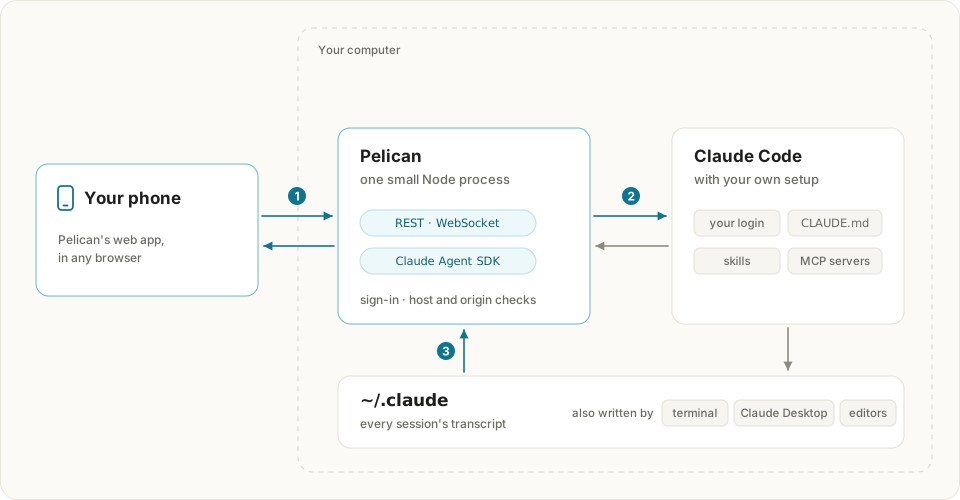
- The web app talks to the server over REST and a WebSocket, which carries Claude’s reply as it is written, permission requests and status changes.
- To run a turn, the server starts Claude Code with the Agent SDK, resuming the session, and passes your approvals back. An idle process closes after a while; the next message resumes the session.
- Everything else comes from Claude Code’s own files. The transcripts in
~/.claude/projects, read incrementally and across compactions, give each session’s history, whichever app wrote it; they are followed while anyone watches. The process registry in~/.claude/sessionstells which sessions another app is running, and whether they are working or waiting for you.
Compared with
There are good ways to reach Claude Code from a phone. What sets Pelican apart is that it works with every session you already have, from any app, and puts nothing between your phone and your computer. As each project documents it, checked on 5 November 2026:
| Your sessions | Between phone and computer | Agents | License | |
|---|---|---|---|---|
| Pelican | All of them, from any app, with their whole history | Nothing: Tailscale, an SSH tunnel or your proxy | Claude Code | MIT |
| Remote Control | Those with Remote Control turned on; Claude plans only | Anthropic’s servers, which keep the transcript while connected | Claude Code | Part of Claude Code |
| Yep Anywhere | Resumes those from the CLI, VS Code and desktop apps | Nothing, or its end-to-end encrypted relay | Claude Code, Codex | MIT |
| Happy, HAPI | Those started in Happy or HAPI | An end-to-end encrypted relay, or with HAPI your own tunnel | Claude Code, Codex and more | MIT, AGPL-3.0 |
| CloudCLI | Every session in ~/.claude | Nothing on your network, or CloudCLI Cloud | Claude Code, Cursor CLI, Codex | AGPL-3.0 |
| SSH and tmux | The ones running in tmux | Nothing | Any |
- Remote Control (Anthropic) connects the Claude app or claude.ai to a session on your computer: run
/remote-controlin it, start it withclaude --remote-control, or turn on Enable Remote Control for all sessions in/config(Claude Desktop and VS Code have the same switch). It forwards permission prompts and questions to your phone with a push, which Pelican cannot do for a session another app is running. It needs a Claude plan; API keys, Bedrock, Google Cloud’s Agent Platform, Microsoft Foundry and LLM gateways are not supported, and on Team and Enterprise an Owner turns it on. Its traffic goes through Anthropic, which stores the transcript while a session is connected, so organizations with Zero Data Retention or the HIPAA configuration cannot use it. From the app you cannot pick Bypass, and a line starting with!goes to Claude as a message. - Yep Anywhere is a web interface for Claude Code and Codex on the Agent SDK, with push notifications and no accounts. It resumes sessions started in the CLI, VS Code and desktop apps, and besides direct access it offers a free relay, end-to-end encrypted.
- Happy and HAPI run the sessions you start in them:
happy claudeorhapi claudeinstead ofclaude, or Happy’s desktop app. You continue from their apps (HAPI also has a web app) through a relay, end-to-end encrypted. Both run Codex and other agents too. - CloudCLI is a web UI for Claude Code, Cursor CLI and Codex, with a file explorer, git and a shell. It finds every session in
~/.claude; you run it on your network, or use CloudCLI Cloud, a hosted environment. - SSH and tmux need nothing new on the computer: run
claudeinside tmux and reach it from an SSH app. Pelican is for what a terminal on a phone does badly: long transcripts, diffs, approvals in one tap, notifications, charts and pages, and history across compactions.
Questions
- Does it work with my Claude plan?
- Pelican runs Anthropic’s own Claude Code, unmodified (the copy the official Agent SDK ships, or the one
PELICAN_CLAUDE_PATHnames), on your computer, signed in the way you signed in toclaude. It never sees, stores or forwards your credentials, puts no service in between, and serves only you: don’t open your Pelican to other people. Signed in with a plan, what you send from Pelican is Agent SDK usage, which draws from your plan’s limits, as Anthropic’s help center says; Anthropic paused a planned change to that on 15 June 2026, so their page has the latest. An API key, Bedrock, Google Cloud or Microsoft Foundry are billed as usual. Anthropic’s rules: authentication and credential use, and using the Agent SDK with your Claude plan. Checked on 5 November 2026. - Why not Remote Control?
- Use Remote Control if you are on a Claude plan and want to answer, from your phone, the prompt waiting in your terminal: Pelican cannot. Pelican shows every session on the computer without turning anything on, keeps nothing on anyone’s servers, and works with any login, API keys and cloud providers included. The comparison has the details.
- Can I approve a prompt waiting in my terminal?
- No: that prompt belongs to the Claude running in the terminal, so answer it there, or use Remote Control. Pelican shows that the session needs you there, and your phone gets a notification if the wait lasts about 20 seconds. Once the session is idle, you can continue it here. Work you start or continue in Pelican asks you in Pelican.
- Why not SSH and tmux?
- That works, and needs nothing new on the computer. Pelican is for what a terminal on a phone does badly: long transcripts, diffs, approvals in one tap, notifications, charts and pages, and history across compactions.
- What happens when my computer sleeps?
- A computer that is asleep runs nothing: Pelican does not answer, and Claude does not work. While Claude works, Pelican keeps the computer from going to sleep on its own, though a closed laptop lid still sleeps unless the laptop is on power with a display attached. To reach Pelican at any time, keep the computer awake, as Keep it running shows.
- Does it send my code anywhere, or phone home?
- No. Pelican is free and MIT licensed, with no account and no telemetry. It talks to your browsers and to Claude Code on the same computer and, if you turn notifications on, to your browser’s push service, with the content encrypted. Claude Code talks to Anthropic, or your provider, as it always does.
- Why is the install about 150 MB?
- The official Agent SDK, which Pelican runs Claude Code through, brings its own copy of Claude Code; Pelican itself is under 1 MB. The live demo needs no install at all.
- How does Pelican keep up with Claude Code?
- Each release moves to the newest Agent SDK, and the Claude Code it brings, once Pelican’s tests pass with it. Claude Code coverage says what Pelican does of Claude Code’s features, and Which Claude Code runs how to run your own.
- Does it work with an API key, Bedrock or Google Cloud?
- Yes: Pelican uses whatever Claude Code is set up with, Microsoft Foundry and LLM gateways included.
- Can I use it while the same session runs in the terminal?
- Yes. Pelican shows that the other app is working on it and follows along. Sending from Pelican then starts a second Claude in that conversation, as the message box says, so wait for the other one to finish first.
- Several computers?
- Run Pelican on each; each is its own page. Add them all to your Home Screen.
- Windows?
- Pelican runs on macOS and Linux. Native Windows does not work yet:
!commands and the status of other apps’ sessions assume a Unix system, and Pelican says so when it starts there. WSL is Linux, so Pelican should run there, next to Claude Code, untested so far; reports are welcome.
Development
git clone https://github.com/Ki-Seki/pelican
cd pelican
npm ci
npm run dev
npm run dev runs the server on port 7860 and the web app on port 5173, both reloading on change. npm test && npm run typecheck checks a change, npm run build && npm run demo serves the build with made-up sessions, and node scripts/smoke.mjs opens it in a browser and fails on any error. The pictures come from npm run screenshots and node scripts/icons.mjs, and this site with its live demo from node scripts/site.mjs. More in CONTRIBUTING.md.